
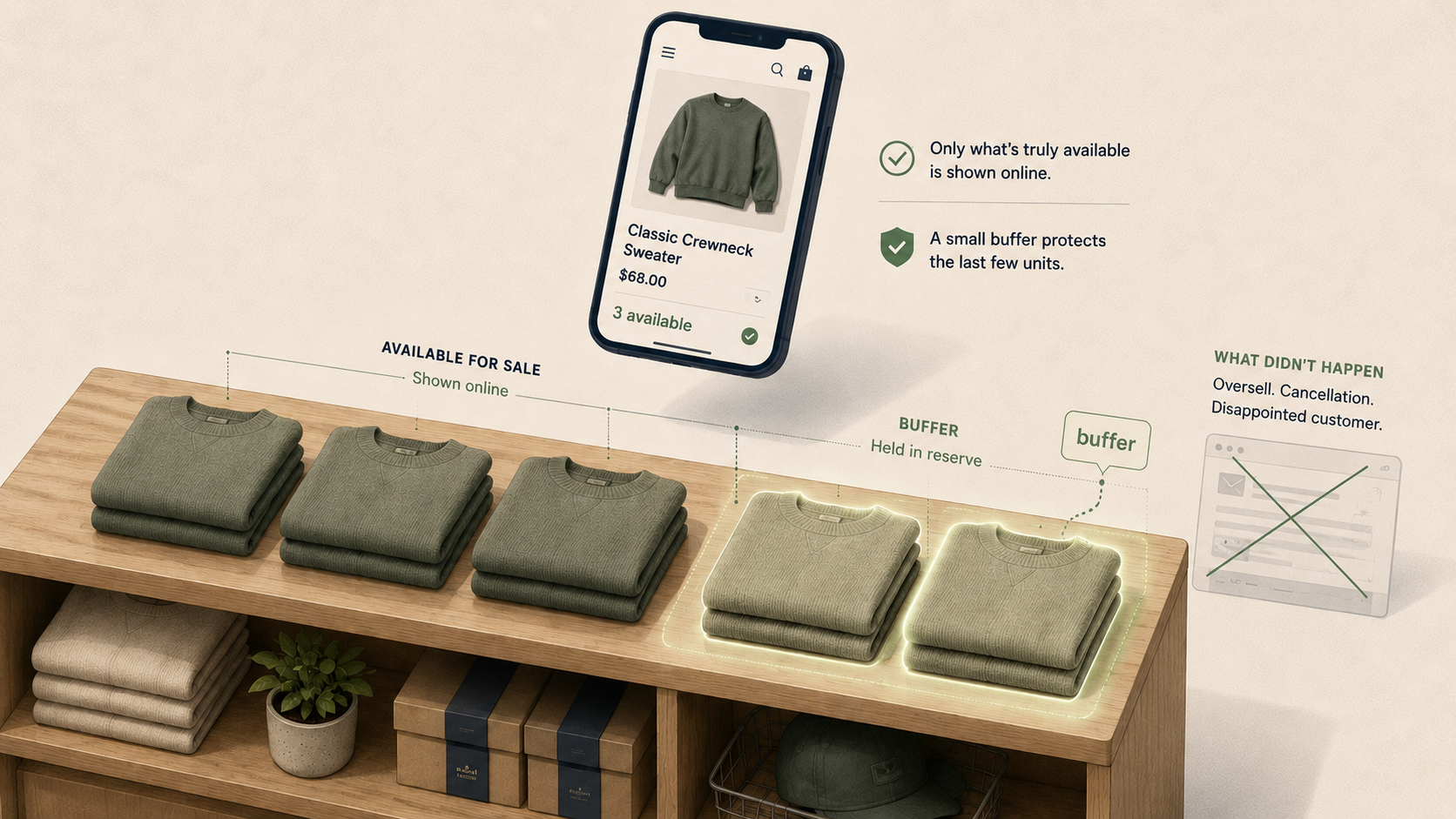
You're processing yesterday's orders and three need to be canceled. The products were "in stock" according to the system, but the shelves are empty. A damaged unit never got written off, a return came back as available stock when it shouldn't have, a unit went missing from theft you didn't catch. Each cancellation becomes an apology email, a refund through Shopify, and a customer who's now far more likely to buy from a competitor next time.
This is what overselling looks like for most retailers. It isn't dramatic — no big system failure, no clear villain — just small inaccuracies between what the system thinks you have and what's actually on the shelf. The fix is equally undramatic: an inventory buffer that quietly absorbs the drift before customers ever see it.
This post explains how buffers work, the two decisions you have to make when setting them, and how to tune them so you stop overselling without leaving sellable stock invisible to your customers.
What an inventory buffer actually is
An inventory buffer is a small number of units of each variant that the system reserves from automated channels (Shopify, marketplaces, social commerce) to absorb the gap between system stock and shelf reality. If your Shopify says 5 units available and you've configured a buffer of 1, your online channels will show 4 — not because you don't have 5, but because that 5th unit might already be gone in ways the system hasn't caught yet.
Safety stock is the same concept, used interchangeably in most contexts. Some integrations distinguish between the two (safety stock as a per-location reserve, buffer as a per-channel threshold), but in practice they describe the same operational tool: hold back the last few units so the very last sale doesn't become an oversell.
The buffer's job isn't to hide inventory from customers. It's to prevent the small, inevitable inventory drift in any physical store from becoming a customer-facing failure.
Why overselling happens
Inventory drift happens to every multichannel retailer, regardless of their sync architecture. Even if your POS and your online store share a single inventory table (as with Shopify POS), the system only knows what gets recorded. Several common situations create gaps between system stock and shelf reality:
The majority of inventory issues are operational, not integrational. The buffer handles the gap between what the system knows and what's actually on the shelf — and that gap exists no matter how good your sync is.
The two questions every buffer strategy answers
Most safety-stock content treats "how much to reserve" as the only question. There's a second question that's equally important: where to hold the buffer across your locations. Each has a different right answer, and treating them separately is the difference between a useful buffer strategy and one that creates more problems than it solves.
Question 1: How much to buffer
The right number depends on how much drift your inventory actually has. A few practical guidelines:
The right number is iterative. Start small, watch what happens, adjust.
Question 2: Where to hold the buffer
This is the decision most retailers don't realize they're making. The same buffer quantity behaves very differently depending on where in your network it sits, and different operations want different placement strategies. Four common approaches:
Most safety-stock tools force a single placement strategy. The ones worth using let you choose per variant, and let the placement either stay static (one designated location) or follow inventory dynamically (last unit, distributed).
Tuning the buffer: the over/under tradeoff
Every buffer has a "just right" size for each variant at each location. Set it too low and drift bites you; set it too high and you create false out-of-stock messages on units you could have sold.
Buffer too low. Drift overwhelms the protection. Oversells, cancellations, refunds, apology emails.
Buffer too high. Online customers who could have been served are turned away. Lost sale that didn't need to be lost.
The right buffer for each variant depends on how much drift you actually have for that variant at that location. High-shrinkage apparel at a busy flagship needs a bigger buffer than a serialized item at a count-disciplined satellite store. Per-variant per-location control gives you the precision to tune each one; a single global buffer treats everything the same and ends up wrong in both directions.
The tuning loop is straightforward: start with a conservative buffer (typically 1-2 units), watch your oversells and false-OOS rates over a few weeks, and adjust per variant per location based on what you see.
Dynamic buffers for peak periods
Static buffers leave money on the table during peak periods, and create stockouts when traffic drops below normal. A few patterns worth supporting:
The tools worth using let you adjust buffers without manually editing each variant — bulk changes, scheduled adjustments, or rule-based changes that apply to whole categories.
How Mortar and Holdback handle this
For Shopify retailers using Lightspeed Retail (R-Series), Lightspeed Retail (X-Series), or Heartland Retail, Mortar handles safety stock thresholds per location as part of its core integration — letting you reserve a per-location buffer that protects against the most common oversell scenarios.
Think of Holdback as the last line of defense against stockouts. Even when everything in your inventory process goes right, something can go wrong — a damaged unit isn't written off in time, a count drifts between cycles, a return is logged back to stock when it shouldn't have been. Holdback is what catches those moments before the customer does. It's a separate Shopify app from the same team that integrates with Mortar, purpose-built for oversell prevention:
Holdback also works for Shopify retailers without a third-party POS — pure online stores, Shopify POS users, or anyone who needs the per-variant per-location precision regardless of POS choice.
See how Mortar handles inventory accuracy →
Where to go next
See how Mortar prevents oversells →
Comparing Lightspeed Shopify integrations?
- Mortar vs. Lightspeed X-Series Native Shopify Integration →
- Mortar vs. SKU IQ: Lightspeed Shopify integration comparison →
Add reach without adding overhead. Mortar runs your store and your online store as one operation. Add channels while you keep working in the POS you already use. Sell everywhere your customers are — without the work multiplying. Your store, everywhere. See how Mortar works · Why Mortar